Welcome to EmuBuddy

EmuBuddy
An Apple IIgs emulator you run with the mouse.
Menus, windows, drag and drop, printing to PDF, internet and file exchange with your computer – all without typing a command.
Get it See what it doesmacOS (Apple Silicon) · Windows (x64) · Linux (x64, arm64) · free, GPL 3
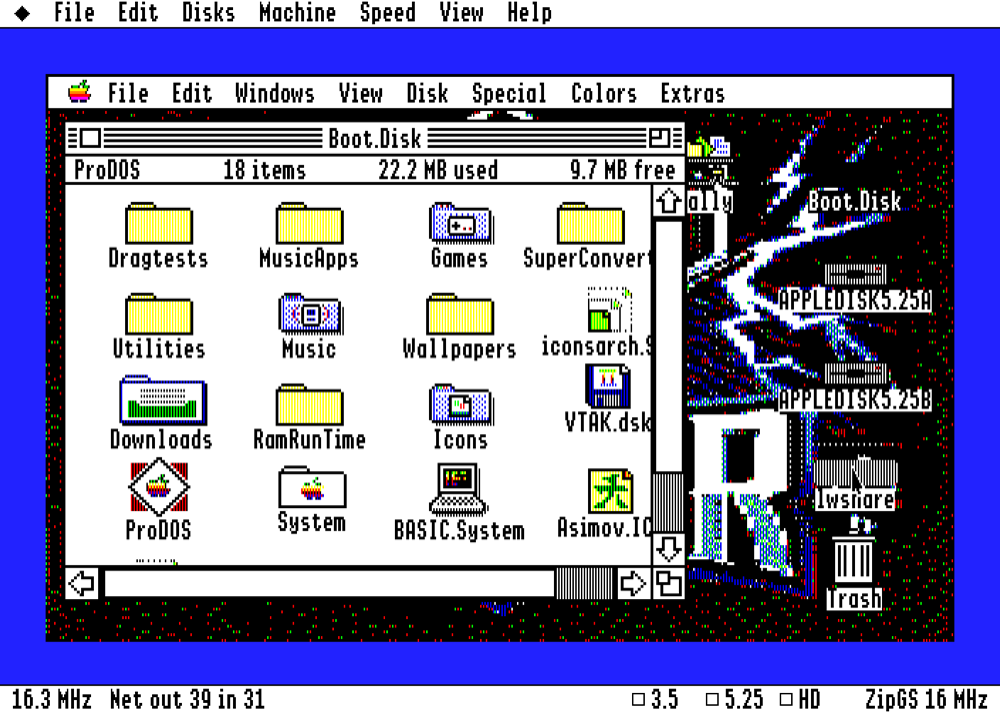
EmuBuddy is built on KEGS, Kent Dickey’s Apple IIgs emulator, through the GSplus SDL3 build. The emulator core is the proven KEGS one. What EmuBuddy adds is everything around it: a menu bar, a status bar and tool windows, easy disk handling, a printer, network access, and several ways to move files between the IIgs and the computer it runs on.
Features
A real user interface
Menus, a status bar and windows for drives, slots, the printer and more. On macOS you get the normal menu bar and the system’s own file choosers.
Printing to PDF
Print from GS/OS to a virtual ImageWriter II or a PostScript printer. Pages appear in a preview window; save them as PDF or send them to a real printer.
Drag and drop
Drop a disk image on the window to mount it. Drop a file and it lands in the Finder window that is open in the IIgs.
Disks on the fly
Two 3.5″ and two 5.25″ drives plus a SCSI card with seven hard disks. .po .2mg .hdv .dsk .do .woz and more.
Shared folders
A folder on your computer becomes a ProDOS disk. What the IIgs saves is a normal file on your computer, and the other way round.
Internet
An Uthernet II card with a built-in network. Marinetti and TCP/IP programs get DHCP, DNS and a connection with no set-up on your side.
Configurable slots
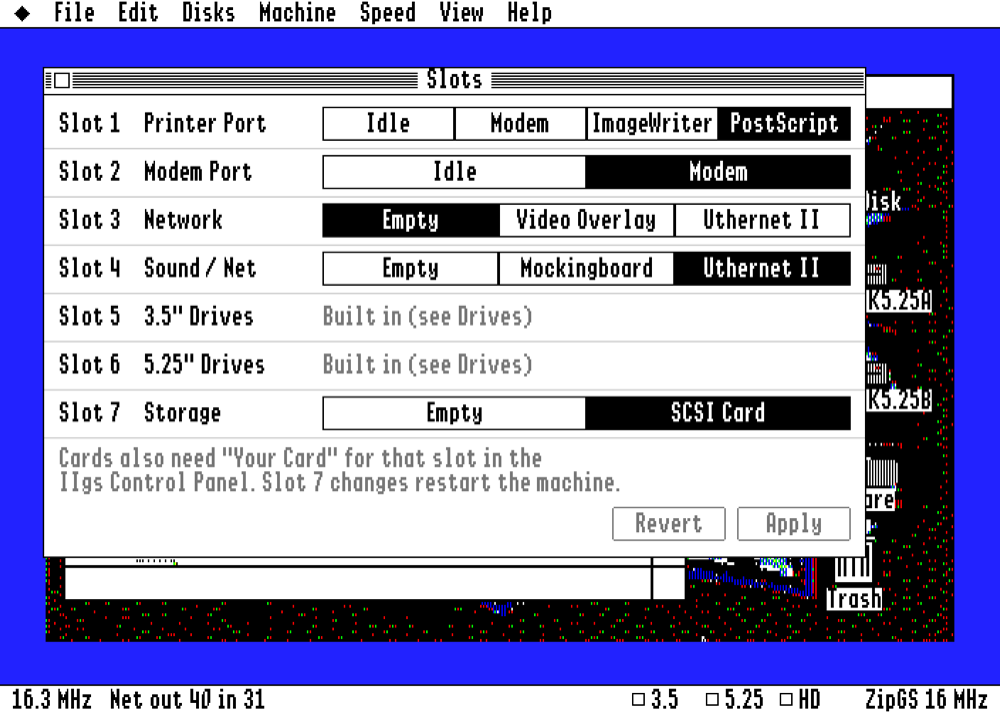
Choose the card for every slot in a window, not in a text file: printer, modem, Mockingboard, Uthernet II, SCSI.
Speed
From the stock 1 and 2.8 MHz through ZipGS speeds up to the full speed of your computer, switchable at any moment.
Screenshots and video
One key saves a screenshot; another records an MP4 with sound.
Your keyboard
German, French, Spanish and other keyboards type what their keys show. Paste text from your clipboard into the IIgs and copy text screens out.
Disk Browser
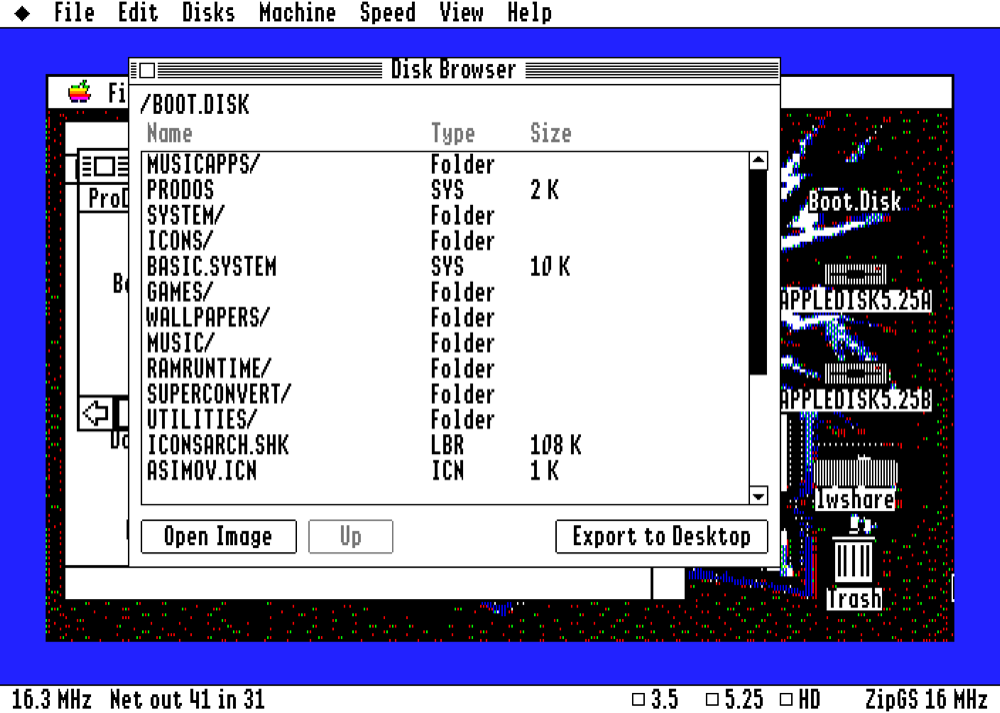
Look inside any ProDOS disk image and take files out, with their file type and size.
A command line, too
Every setting also works from the command line in the style of MAME’s apple2gs. See below.
Printing to PDF
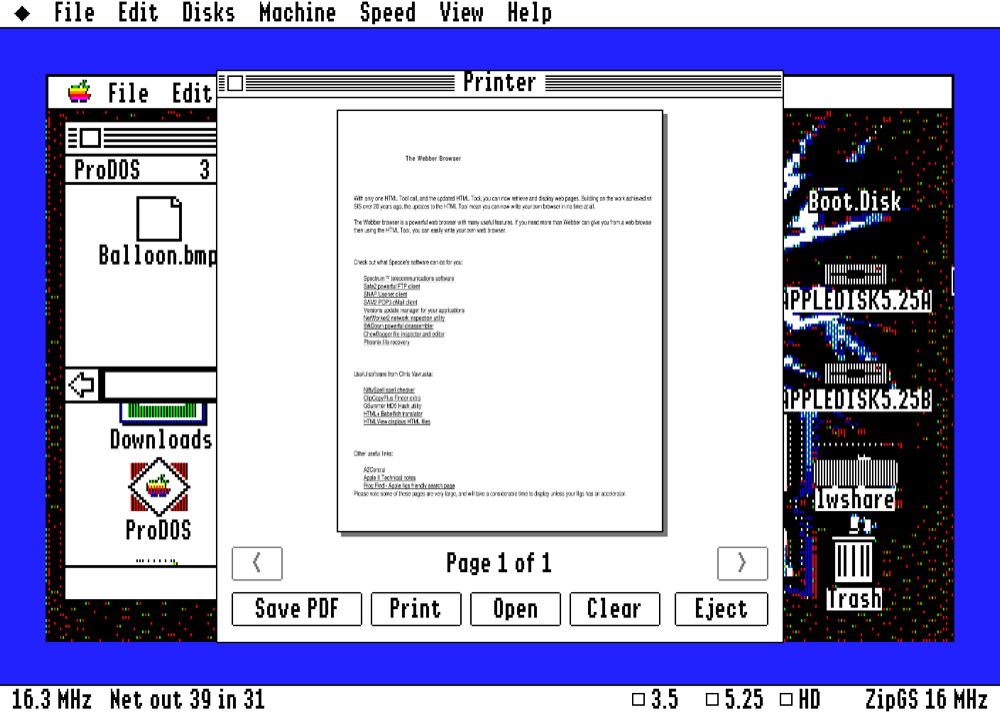
EmuBuddy has two virtual printers. Pick one for slot 1 in the Slots window. Every page lands in the Printer window, where you can flip through the pages, Save PDF, Print on a real printer, Open the PDF in your viewer, Clear the pages or Eject the page that is still being printed.
ImageWriter II
Choose the ImageWriter printer driver in GS/OS and the ImageWriter port. This is the dot matrix printer that most IIgs software supports; Applesoft PR#1 prints on it too.
PostScript
In the GS/OS DC Printer control panel choose the printer port and the printer type DC.PostScript. The pages are drawn by Ghostscript, which EmuBuddy finds by itself. Save PDF then writes a sharp, small vector PDF – real text, a few KB per page – instead of a picture of the page.
Ghostscript is a separate program (brew install ghostscript on macOS). If it is missing, EmuBuddy keeps the print job and shows a window that explains how to get it.
Drag and Drop
Drop a disk
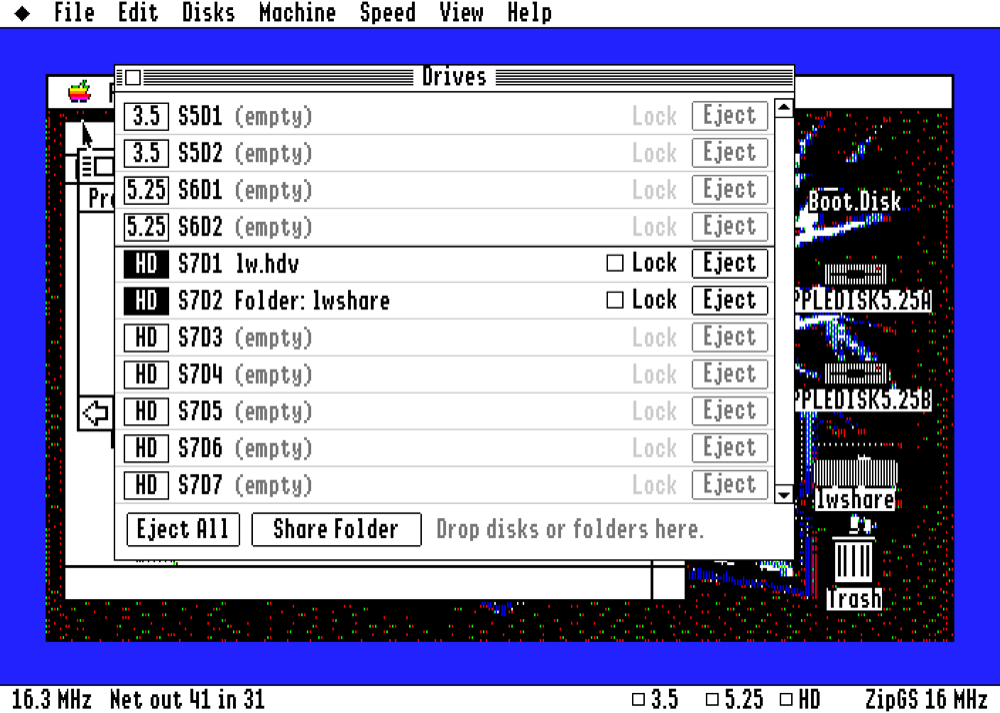
Drop a disk image anywhere on the window, or on a row in the Drives window, while the IIgs is running. EmuBuddy picks the right drive from the image’s size and type. Disk images that hold several partitions ask which one to use. Ejecting waits if the disk is busy, so you can never pull a disk out in the middle of a write.
Drop a file
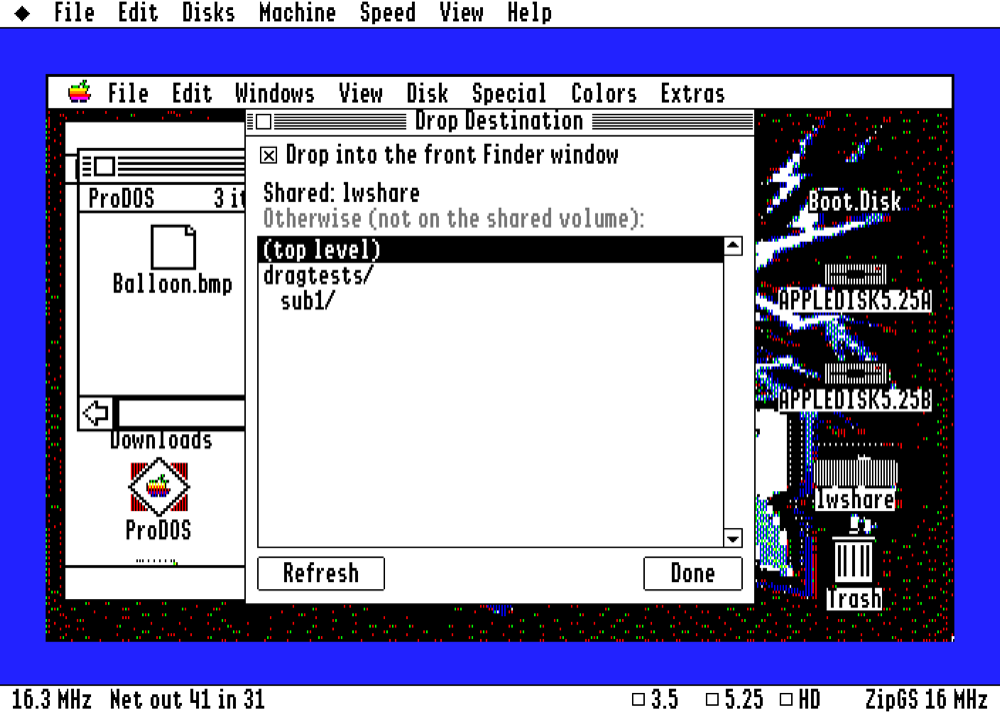
Drop any file on the emulator and it is copied into the shared folder. If the front window of the GS/OS Finder shows the shared disk or one of its folders, the file goes into exactly that folder. If it shows a folder on another disk, EmuBuddy stages the file and a small background helper inside the IIgs copies it into that folder by itself. Otherwise it goes where Disks › Drop Destination… says.
The helper is one small file in SYSTEM/SYSTEM.SETUP of your startup disk. EmuBuddy asks once, at the first start, whether it may install it. You can delete it at any time.
Drop a folder
Drop a folder on the window and it is shared as a live ProDOS disk. A file you put in the folder shows up in the IIgs, and what the IIgs saves is a normal file in the folder.
File types travel with the file
ProDOS files have a type and an aux type that a normal file system does not. EmuBuddy keeps them in the file name: GAME,t$B3,a$DB03 is a type $B3 file with aux type $DB03, NOTES.txt is a text file. The same convention is used everywhere, so a file can travel in both directions without losing its type.
Windows and Menus
Speed and display
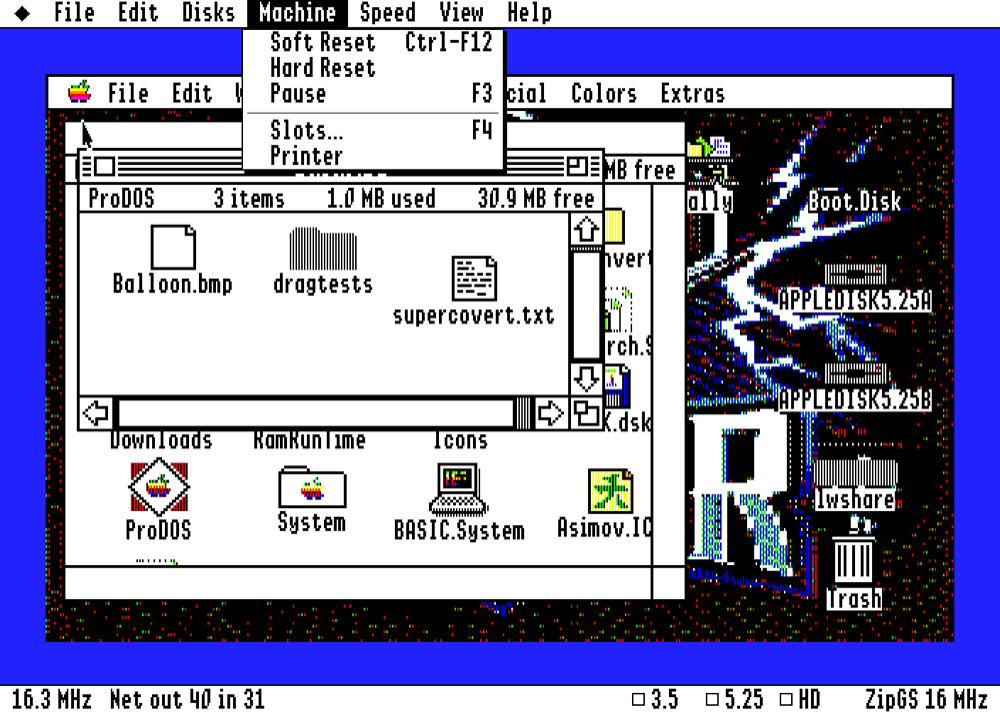
The Speed menu switches between the stock 1.0 and 2.8 MHz, a ZipGS accelerator at 8, 16, 32, 64 or 128 MHz, or Unlimited. View offers window sizes 1x to 4x, full screen, a curved CRT effect and scanlines. The picture is always scaled evenly, so pixels stay square.
Screenshots and video
F10 saves a screenshot, Shift-F10 the whole window, and Ctrl-F10 starts and stops an MP4 recording with sound (needs FFmpeg).
Keys
| Key | Action |
|---|---|
F1 | Open-Apple, for keyboards without an Apple key |
F2 | Drives window |
F3 | Pause |
F4 | Slots window |
F10 · Shift-F10 · Ctrl-F10 | Screenshot · window screenshot · record video |
F11 · Shift-F11 · Ctrl-F11 | Full screen · scanlines · CRT effect |
Ctrl-F12 | Soft reset, like Ctrl-Reset on a real IIgs |
Command Line
Everything the menus do also works from the command line, in the style of MAME’s apple2gs. It is meant for scripts, launchers and shortcuts. Options last for one run only and nothing is written to your config file, so your normal set-up stays as it was – unless you add -save.
EmuBuddy [apple2gs] [options] [disk image or folder ...]On macOS the program is inside the app: EmuBuddy.app/Contents/MacOS/EmuBuddy.
An example
EmuBuddy apple2gs -rom ROM03 -hard1 System6.hdv -flop3 Game.2mg \
         -sl1 imagewriter -sl4 uthernet2 -mhz 16 -scale 2 -share ~/IIgsFiles
That starts a ROM 03 machine from a System 6 hard disk with a game in the first 3.5″ drive, an ImageWriter on the printer port, internet on slot 4, 16 MHz, a window twice the IIgs size, and a folder on your computer shared with the IIgs.
Disks
| Option | Meaning |
|---|---|
-flop1 <img> -flop2 <img> | 5.25″ drives (slot 6, drive 1 and 2) |
-flop3 <img> -flop4 <img> | 3.5″ drives (slot 5, drive 1 and 2) |
-hard1 <img> … -hard7 <img> | SCSI hard disks (slot 7, drive 1 to 7) |
-share <folder> | a folder on your computer as a live ProDOS volume |
<img or folder> | goes into the first free drive that fits |
Slots
| Option | Cards |
|---|---|
-sl1 <card> | imagewriter, postscript, modem, none (printer port) |
-sl2 <card> | modem, imagewriter, postscript, none (modem port) |
-sl3 <card> | uthernet2, voc, none |
-sl4 <card> | mockingboard, uthernet2, none |
-sl7 <card> | scsi, none |
Slots 5 and 6 hold the built-in drives. As on a real IIgs, a card is only used when its slot is set to “Your Card” in the IIgs Control Panel.
Machine
| Option | Meaning |
|---|---|
-rom <file> | the IIgs ROM file (ROM 01 or ROM 03) |
-rompath <folder> | look for the ROM file in this folder |
-ramsize <n>M | memory expansion, 0M to 8M |
-mhz <n> | 1, 2.8 (stock), 8, 16, 32, 64, 128 (ZipGS) or max |
-nothrottle | as fast as possible (same as -mhz max) |
Display
| Option | Meaning |
|---|---|
-window -nowindow | window or full screen |
-resolution <WxH> | window size, for example 1408x1136 |
-scale <n> | window size as a multiple of the IIgs screen (made smaller if it does not fit) |
-crt | curved CRT effect |
-scanlines <0-100> | scanline strength |
Other
| Option | Meaning |
|---|---|
-title <text> | the window title |
-quitshot <file.png> | save a picture of the IIgs screen to this file when EmuBuddy quits (the Launcher uses it as the picture of a game) |
-validate | check that the ROM, disks and folders named exist, print the result and exit (0 = fine, 1 = something is missing) |
-showconfig | print the settings this command line stands for and exit |
-bridge <folder> | a folder that programs inside the IIgs may read and write (the host bridge) |
-save | also keep these settings in the config file |
-cfg <file> | use another config file |
-h -help | list all options |
All KEGS options (-<config variable> <value>) still work and are passed through. Exit codes: 0 fine, 1 error while running or -validate found a problem, 2 bad command line.
EmuBuddy Launcher
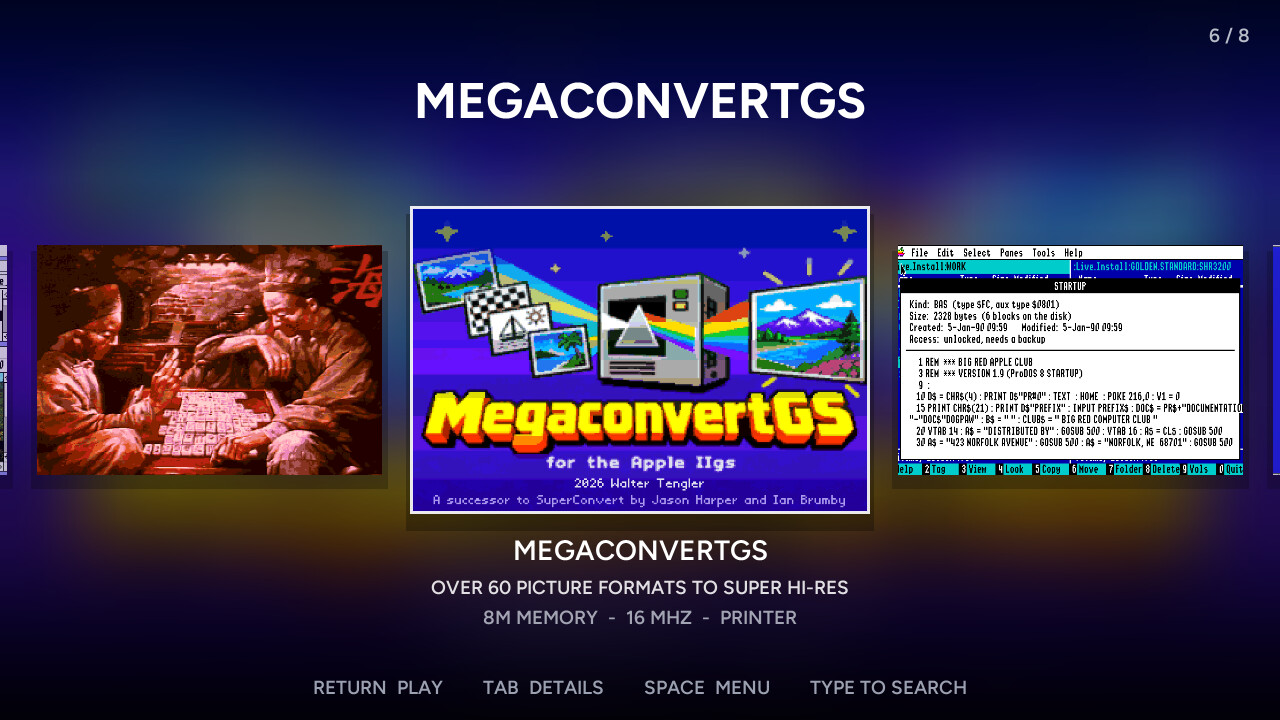
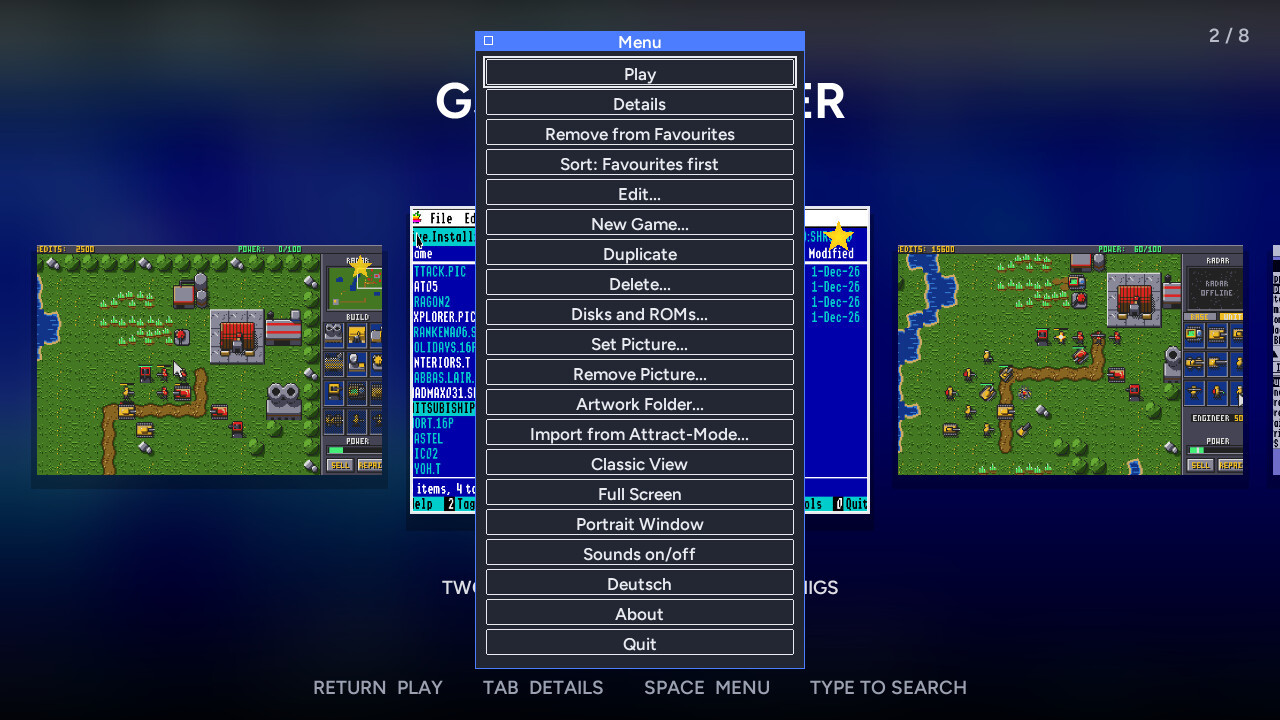
The download holds a second program, EmuBuddy Launcher: a picture-first front end in the style of Attract-Mode’s Arcadeflow. Your games – complete machine set-ups with ROM, memory, speed, slots and disks – show up as a row of big covers over a blurred background, and one key starts EmuBuddy with the right command line.
Keyboard, mouse or controller
Arrow keys and Return, the mouse, or a game controller: D-pad or stick to move, A plays, Y opens the menu. The dialogs work with the controller too. Type a few letters to search.
Pictures for every game
Use your own covers (PNG, JPG or BMP) or the artwork folders of Attract-Mode. A game without a picture gets one by itself: EmuBuddy keeps the last IIgs screen when it quits.
A simple editor
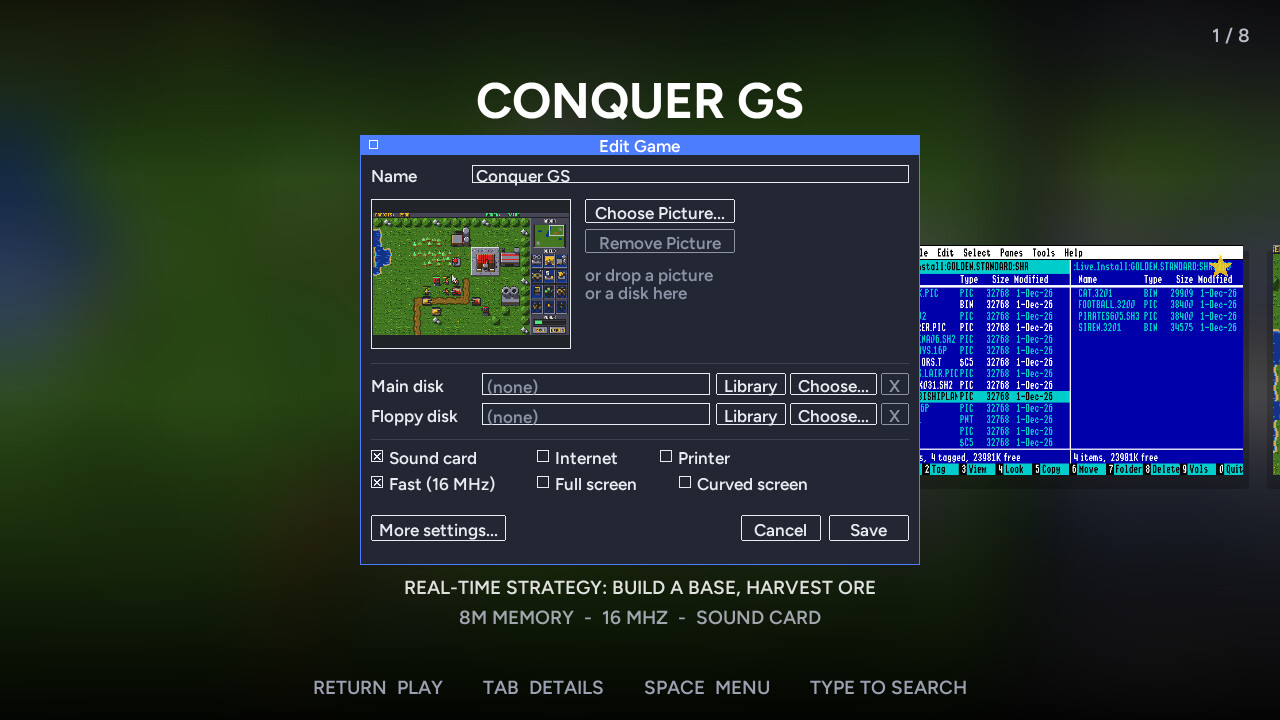
Name, picture, a main disk and a floppy, and switches for sound card, internet, printer and speed. “More settings” shows every slot and all drives.
Favourites and sorting
Mark favourites with a star and sort by name, favourites first, last played or most played. After a minute without input a slideshow walks through your games.
Disks and ROMs library
Name the folders that hold your ROMs and disk images. The library lists them with disk type and ProDOS volume name and shows which game uses each file.
Import from Attract-Mode
Reads ~/.attract, makes a game of every entry of a system’s list and takes over the options of its start script. Your Attract-Mode folder is not changed.
Portrait screens and German
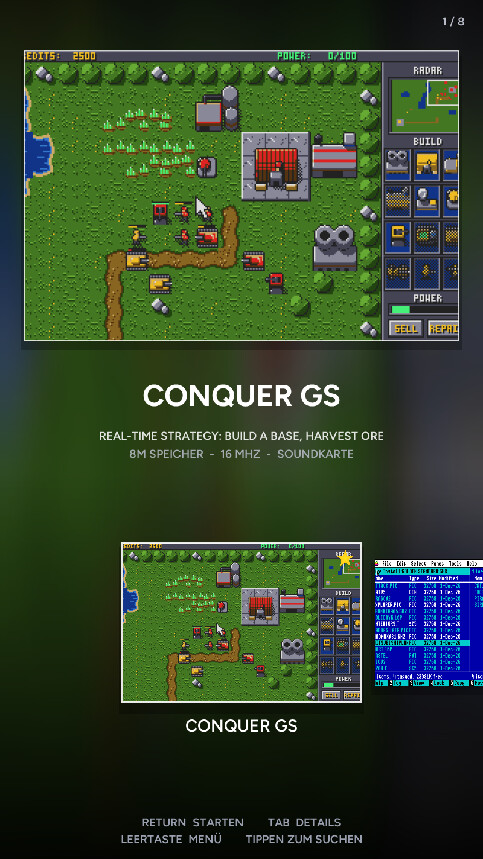
When the window is taller than wide, the view changes to a portrait layout: a big picture of the selected game on top, the row of covers below. It does so by itself on a turned screen, for example in an arcade cabinet; Portrait Window in the menu opens an upright window on a normal screen.
The launcher speaks English and German. It follows the language of your system, and the menu switches it.
A Classic view with windows, a menu bar and fourteen skins (Retro, Modern, MacOS 7, Commodore 64, ZX Spectrum, Amstrad CPC, NeXT, BeOS and more) is one menu item away. It shows the command line of every game.
Get EmuBuddy
Downloads are coming soon. EmuBuddy runs on macOS (Apple Silicon), Windows (x64) and Linux (x64 and arm64) and looks the same on all of them.
You need a ROM
Like every IIgs emulator, EmuBuddy needs an Apple IIgs ROM file. It is Apple’s copyrighted firmware, so it cannot be included. Without one, EmuBuddy shows a ROM Required window. A ROM 03 file (256 KB) is the usual choice; a ROM 01 file (128 KB) works too. Drop the file on the window or choose it with File › Choose ROM File…; EmuBuddy remembers it. The cleanest way to get one is to read it out of an Apple IIgs you own.
First start
The downloads are not code-signed or notarized, so your system warns you the first time. On macOS remove the quarantine mark once: xattr -dr com.apple.quarantine /Applications/EmuBuddy.app. On Windows click More info, then Run anyway. On Linux unpack the archive and run EmuBuddy (it needs the SDL3 library).
Then drop a disk image on the window. The IIgs boots from the first bootable disk, as a real one would.